


Profile Picture Border Frame
4.7507.00 Reviews
App Specs
- Version
- 2.4.9
- Updated On
- License
- Free
- Downloads
- 5,000,000+
- Developer
- ZipoApps
- Categories
- Personalization
- Platform
- Android
Screenshots

 Analysis by AppCompare
I judge a profile-picture editor by what happens after the first burst of curiosity: do I still have a reason to open it once I have tried a few looks? Profile Picture Border Frame is built around a simple, visible change rather than a full photo-editing workflow. That narrow focus is part of its appeal, but it also means its lasting value depends on how often you actually refresh your profile image.
A quick first-week experiment
For the first few days, trying different borders can be an easy way to make one familiar portrait feel new. I would start with a photo that already has a clear subject and a background that is not too busy; a border can frame a face, but it cannot rescue a poorly lit or awkwardly cropped image. A restrained edge is often more useful than the loudest design, especially when the picture will appear as a tiny circle beside comments and messages.
A practical test is to save two or three noticeably different treatments and view them at the small size used by the social profile where you plan to post. A design that looks striking full-screen may become a thick band or a jumble of color when reduced. This is a useful way to decide whether the frame improves recognition, rather than simply adding decoration.
Where it fits into a regular routine
I see the app as an occasional finishing tool, not something most people need to use every day. It makes sense when you have a new headshot, want a temporary seasonal look, or are coordinating a profile image with a club, creator page, or personal project. If your photo has not changed and you are happy with it, there may be no reason to return for a while—and that is a reasonable outcome for a focused utility.
One everyday scenario: you take a new portrait before updating a work profile, then make a second version with a subtle border for a social account. Before using either, compare them against the intended background and check that your face remains easy to recognize at thumbnail size. The border should support the photo, not become the first thing people notice.
How much upkeep the idea requires
The maintenance burden is mostly creative rather than technical: choose a good source photo, try a few treatments, and keep track of which finished image belongs on which account. If you change profiles frequently, it helps to use a consistent naming habit when saving images, such as identifying the account or occasion. That small step can prevent an older experiment from being uploaded by mistake.
For people who want a complete visual refresh, a border alone may feel limited. A general photo editor is a better fit if you need to retouch lighting, remove distractions, reshape a crop, or build a more elaborate composition. I would do those edits first and use a border only as a final accent; adding decoration before fixing the underlying photo can make a weak result harder to judge.
Worth Reading Before You Choose

EA SPORTS FC Mobile 26 Is a Bigger Football Game, but It Takes Time

Flipboard Shows What News Apps Must Do Beyond the Feed

Switching to Android Auto Means Rethinking Your Driving Routine

Google Calendar Makes a Crowded Week Easier to Manage

Ludo King Makes the Most of the Minutes Between Plans

Baby Panda World Brings Quick Play to Modern Phones, but Its Game Library Feels Busy
When the novelty wears off
The main source of fatigue is repetition. If the available looks do not match your style, or you rarely change your profile image, the app may not earn regular attention after the initial browsing. A dramatic frame can also date a portrait or distract from a professional image, so I would keep a plain version available and choose the decorated one only where it suits the audience.
It is also worth treating platform previews as a guide rather than a guarantee. Social services can crop profile photos differently, and the final result may not preserve every edge exactly as you saw it while editing. Leave breathing room around the face and important details, then check the image after uploading. That extra check is more reliable than assuming one crop will work everywhere.
Getting Started with the App
First things first, downloading the app was a breeze. Available for both Android and iOS, you can find it easily on the respective app stores. Once installed, you're greeted with a user-friendly interface. It's straightforward, which is a relief because nobody wants to spend ages figuring out how to navigate an app.
After opening the app, you simply upload your favorite photo. The app supports a variety of image formats, so you won’t have to worry about compatibility issues. Within seconds, your image is ready to be adorned with a border frame. The speed and ease of use are definitely a plus.
Exploring the Features
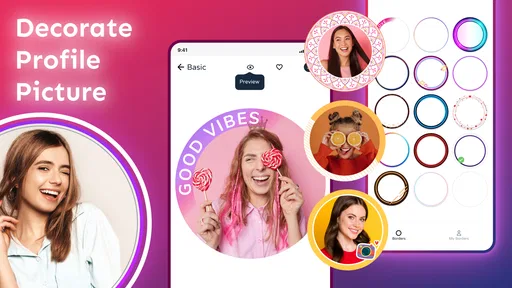
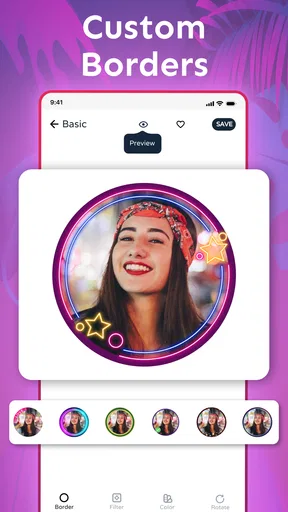
Now, let’s talk about the features because that’s where Profile Picture Border Frame really shines. The app offers a plethora of border options, ranging from simple and elegant to funky and loud. Whether you’re going for a classic black frame or a rainbow splash, there’s something for every style.
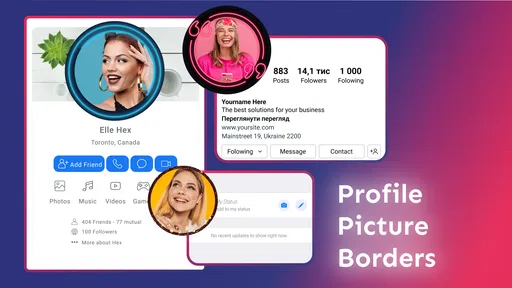
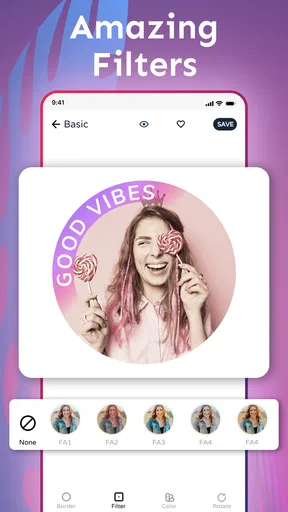
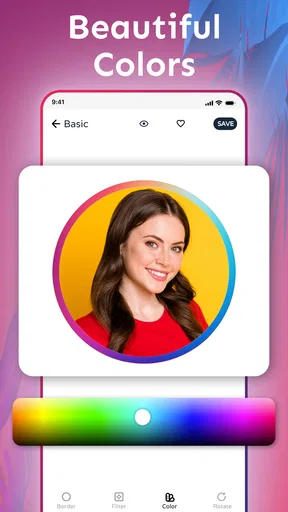
One of my favorite things is the customization option. You can adjust the thickness of the border, change the color, and even add shadow effects. It’s like having a mini photo studio in your pocket. Plus, the app lets you preview how your profile picture will look on various social media platforms, which is super handy.
Performance and Usability
While using the app, I didn’t experience any lags or crashes, which is always a win in my book. The transitions between different screens are smooth, and the editing tools are responsive. It’s clear that the developers have put effort into ensuring a seamless user experience.
The app also supports high-resolution images, so your profile picture will look crisp and professional. Let’s face it, nobody wants a pixelated profile picture!
Choosing the right image for the job
Although a bold frame can be fun, I would not use the same treatment automatically on every account. A colorful border can help a personal profile stand out among friends, while a restrained edge is more likely to suit a portfolio or professional page. If you use one portrait across several platforms, consider keeping a clean copy too: it gives you the option to switch back without rebuilding the image later.
There is a small but important trade-off between decoration and legibility. Thin details and subtle shadows can disappear when a profile picture is displayed at a very small size, while a thick border can take up space that would otherwise show more of your face. I recommend comparing the framed image with the original at the same thumbnail size, not just judging them side by side at full resolution.
What it does better than a general editor
Compared with a broad photo-editing app, this tool is appealing when the only change you want is a border. You can focus on the framing decision instead of navigating a larger set of controls for retouching, filters, and image effects. That simplicity is valuable if you are making a quick profile update and already like the photo itself.
The reverse is equally important: if your goal is to make a polished portrait from scratch, a general editor gives you more room to correct the image before styling it. I would not treat a border app as a replacement for cropping, lighting adjustments, or careful portrait selection. Its strongest role is the final finishing touch, not the whole photography process.
Who should keep it—and who can skip it
I would recommend trying it if you enjoy refreshing profile pictures, manage different personal accounts, or want an uncomplicated way to add a visible edge to a portrait. It is especially useful when you already have a photo you like and want to compare a few styles without turning the task into a full editing session. If you rarely change your image, though, the novelty may pass quickly and there is no need to keep an extra tool in your routine.
For younger and older users alike, its Everyone content rating makes the intended audience broad, but that does not mean every design will suit every setting. I would be selective about where a playful look appears, particularly on work-related pages. The best choice is the one that fits the people who will see it, not necessarily the most elaborate frame in the editor.
Cost, updates, and lasting value
The app is free to download, while in-app purchases range from $0.99 to $99.99 per item. I would look at the available options before paying for anything and decide whether you will use the added choice often enough to justify it. For an occasional profile refresh, the free starting point may be all you need; someone who regularly experiments with profile styling may value a wider selection more.
Made by ZipoApps, the personalization app has a 4.8 average from around 75,000 ratings and over 5 million installs. It was released on February 3, 2020, and version 2.4.9 is the current version. It runs on Android 5.0 and newer. Those details suggest a well-established, easy-to-find option, but they do not change the basic question of whether you personally update your profile often enough to make a dedicated border tool worthwhile.
Final Thoughts
Overall, Profile Picture Border Frame is a fantastic app that delivers on its promises. It’s easy to use, packed with features, and perfect for anyone looking to enhance their online presence. The app is often updated, bringing new frames and features, so you’ll always have something new to try out.
So, if you’re ready to take your profile pictures to the next level, give this app a shot. It’s like giving your photos a little hug, and who wouldn’t want that?
My longer-term verdict is a little more measured: I like it best as a handy, occasional tool rather than a permanent part of my daily routine. Its value comes from making a small visual change quickly, and that can be enough when a border genuinely suits the photo and account. If you want deeper portrait editing or expect a new experience every time you open an app, I would choose a broader editor instead. But for a quick profile-picture refresh, this is a straightforward option worth trying.
Pros
- Easy to use interface for quick edits.
- Variety of stylish border options.
- Customizable colors to match themes.
- High-resolution export ensures quality.
- Supports both portrait and landscape modes.
Cons
- Limited free features; many are premium.
- Occasional ads can disrupt workflow.
- Some borders may not fit all sizes.
- Requires internet for full functionality.
- No direct sharing to some social platforms.
FAQs for Profile Picture Border Frame
What is Profile Picture Border Frame and how does it work?
Profile Picture Border Frame is an app designed to enhance your social media profile pictures by adding stylish borders. Users can choose from a variety of themes and colors to personalize their images. Simply select a frame, upload your photo, and adjust the size and position to fit your preference.
Is Profile Picture Border Frame free to use?
The app offers a free version with basic features and a selection of borders. However, to access premium borders and additional customization options, users can opt for in-app purchases or a subscription plan. This allows you to unlock exclusive designs and tools for a more personalized experience.
Can I use Profile Picture Border Frame on multiple social media platforms?
Yes, Profile Picture Border Frame supports multiple social media platforms. The app is designed to work seamlessly with popular sites like Instagram, Facebook, and Twitter. You can easily export your edited photos in the optimal size and format for each platform directly from the app.
Does Profile Picture Border Frame require an internet connection?
An internet connection is required to download the app and access certain features like premium content and updates. However, once the app and necessary content are downloaded, you can use it offline for basic editing and applying borders to your photos.
How user-friendly is Profile Picture Border Frame for beginners?
Profile Picture Border Frame is designed with a user-friendly interface, making it accessible for beginners. The app offers intuitive navigation and simple editing tools, along with tutorials and tips for first-time users. This ensures that even those with little editing experience can easily enhance their profile pictures.


